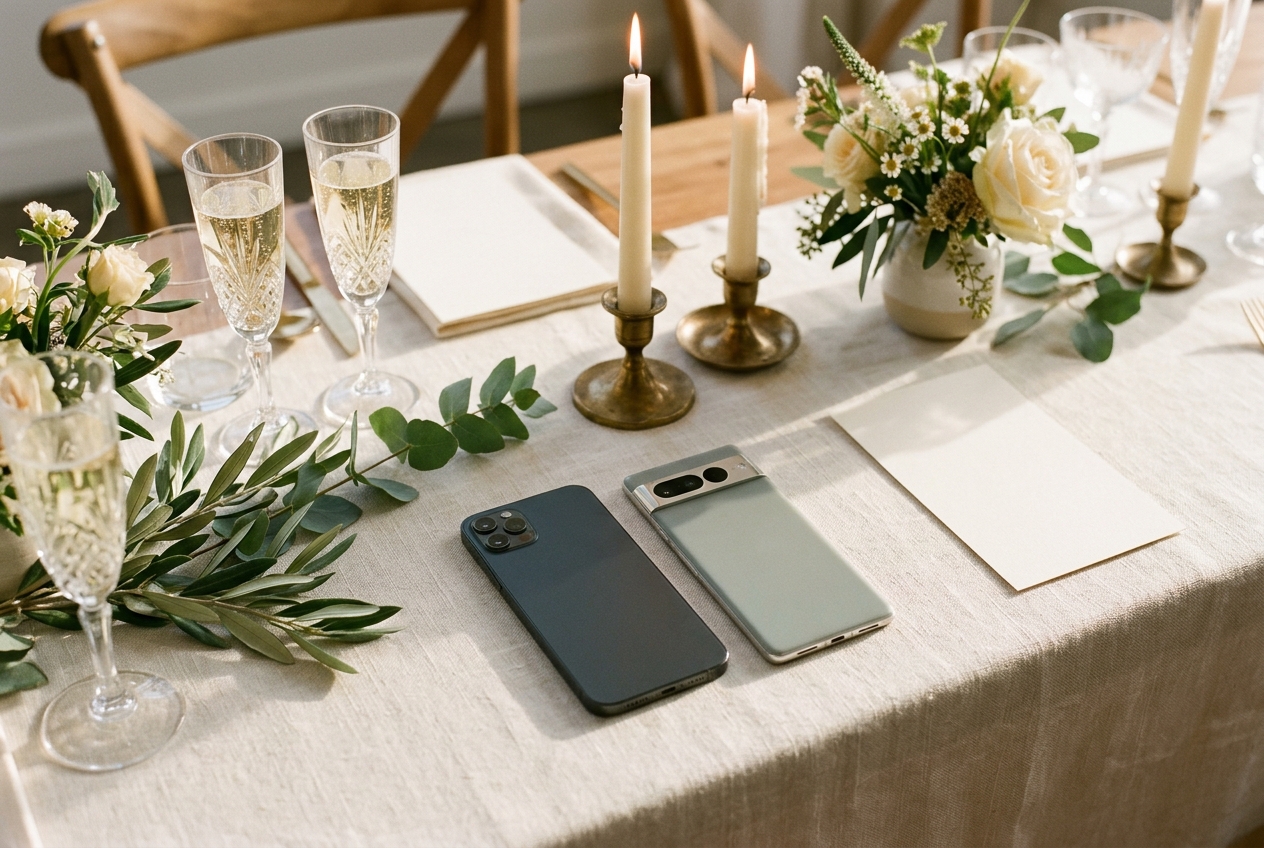
You can use an iCloud Shared Album for wedding photos, but it usually leaves part of your guest list out. Apple’s Shared Albums work well when a small group of iPhone users already share pictures together. At a real wedding, however, any guest with an Android phone cannot upload, iPhone guests still have to accept an Apple ID invitation before contributing, and Apple resizes uploaded photos and videos instead of keeping full-resolution originals.
If your goal is to collect candid photos and videos from every guest without troubleshooting phones during your reception, a dedicated QR code gallery removes those roadblocks. With Snap the Knot, guests scan a code or tap a link and upload straight from their mobile browser, with no app, no account, and no device restrictions.
How an iCloud Shared Album works for wedding guests
An iCloud Shared Album lives inside Apple’s Photos app. You create an album on your iPhone, iPad, or Mac, then invite people using the email address or phone number tied to their Apple Account. Once a guest accepts the invitation, the album appears in their Photos app and they can add pictures or comment.
Apple also offers a “Public Website” toggle that generates a shareable iCloud link. That link lets anyone (including Android and desktop users) view the album in a browser. What it does not do is let non-Apple users upload their own photos.
That distinction catches a lot of couples off guard. Creating the album takes two minutes, so it feels like a solved problem right up until wedding weekend, when friends and family start asking why they cannot add their pictures.
5 reasons guests drop off with an iCloud Shared Album
1. Android guests cannot upload photos
Most weddings have a mix of iPhone and Android users across friends, coworkers, and extended family. With an iCloud Shared Album, guests on Samsung, Google Pixel, or other Android devices cannot join the album or upload files. Even if you turn on the public web link, they can only look at what iPhone guests posted.
That leaves you chasing Android guests over text, email, or separate links after the wedding, which is the exact mess you were trying to avoid.
2. Invitations add friction before anyone can share
You cannot simply put a scannable QR code on reception tables that lets everyone drop photos into an iCloud Shared Album. You have to invite iPhone guests individually by the exact email or phone number connected to their Apple Account. Guests who use a different email address, have Shared Albums turned off in iOS Settings, or miss the notification buried in their Photos app never make it inside.
Just like we see with Google Photos at weddings and Facebook album QR codes, every extra login or settings check causes well-meaning guests to put their phone back in their pocket and forget.
3. Photos and videos are compressed
iCloud Shared Albums are built for casual sharing, not long-term preservation. Apple automatically downsizes uploaded images and compresses video files rather than storing the original camera files. Photos may still look fine on a phone screen, but if you want to print a candid reception shot for a photo book or frame a favorite family moment, losing original resolution is a real drawback.
4. No built-in signage, live display, or event structure
Because Shared Albums are a general Apple utility rather than a wedding tool, there is no QR upload page, no way to separate rehearsal dinner photos from reception shots inside one wedding hub, and no live reception photo wall. Everything lands in one chronological stream alongside comments and likes.
5. Privacy controls can be all-or-nothing
If you leave the album invite-only, guests without an Apple Account cannot see anything. If you turn on the Public Website link so Android family members can view photos, anyone who gets that URL can view the album without a login. Couples often end up bouncing between two setups: iCloud for some guests and text threads for everyone else.
When an iCloud Shared Album is still fine
An iCloud Shared Album is not a bad tool for every situation. It can be completely practical if:
- You are hosting an intimate dinner or elopement where you already know every guest uses an iPhone.
- You only want a casual place for your wedding party or immediate family to trade behind-the-scenes snapshots.
- You do not mind reduced file resolution and are not planning to print guest photos.
Even then, many couples use a dedicated gallery to collect original files from everyone first, and save iCloud or group chats for sharing a few favorite highlights afterward.
iCloud Shared Album vs. a wedding QR code gallery
If you are deciding between Apple’s built-in option and a purpose-built wedding gallery like Snap the Knot, here is how the guest experience compares:
| What matters on wedding day | iCloud Shared Album | Snap the Knot gallery |
|---|---|---|
| Works for both iPhone and Android guests | No. Android guests can only view a public link, not upload. | Yes, works in any phone’s web browser. |
| QR code upload from table signs | Not supported for direct guest uploads. | Yes, guests scan a wedding photo QR code or tap a link. |
| No app or account required | Requires an Apple Account and Photos app setup. | Yes, no app download or login needed. |
| Full-resolution downloads | Files are resized and compressed. | Yes, download full-resolution photos and videos. |
| Organize multiple wedding events | Requires creating and inviting guests to separate albums. | Optional separate event galleries for showers, rehearsal dinner, and wedding day. |
| Reception extras | None built in. | Live Photo Wall, printable QR signs, and Google Photos export. |
How to set up a wedding photo system everyone can actually use
Switching away from an iCloud Shared Album takes only a few minutes, and you can test the flow before you commit. Snap the Knot includes a free 5-photo test gallery so you can scan your code on both an iPhone and an Android phone ahead of time.
- Create one private gallery for your wedding. Everything guests upload lands in one place, and your gallery stays accessible until one year after your wedding date (with the option to extend if you want more time), while you can download everything to keep at full resolution or export straight to Google Photos.
- Make your QR signs easy to spot. Use the free printable QR sign maker or add printed signs to your order so you can place them at the welcome table, bar, and reception tables.
- Include a direct link for guests who prefer tapping. Share the same upload link on your wedding website and in a next-day text message so guests who took photos on their camera roll can upload on the ride home.
- Keep multi-event weekends organized. If you want separate spaces for your engagement party, bridal shower, bachelorette, and rehearsal dinner, set up individual event galleries under the same wedding hub.
- Back up your favorites once the weekend wraps. Download your collected photos and videos and follow a simple long-term wedding photo storage plan so nothing gets lost when phones are upgraded later.
The best wedding photo system is the one your least tech-savvy guest (on either iPhone or Android) can use in ten seconds without asking for help.
Skip the device divide on your wedding day
An iCloud Shared Album is convenient for everyday Apple-to-Apple sharing, but weddings bring together every age group and every kind of phone. Asking half the room to work around an Apple-only album means missing candid moments from friends and family who would have gladly shared them.
If you want one private place where every guest can drop full-resolution photos and videos in seconds, explore Snap the Knot’s wedding photo-sharing features, check simple one-time pricing, or start a free 5-photo test gallery to try the upload flow yourself.