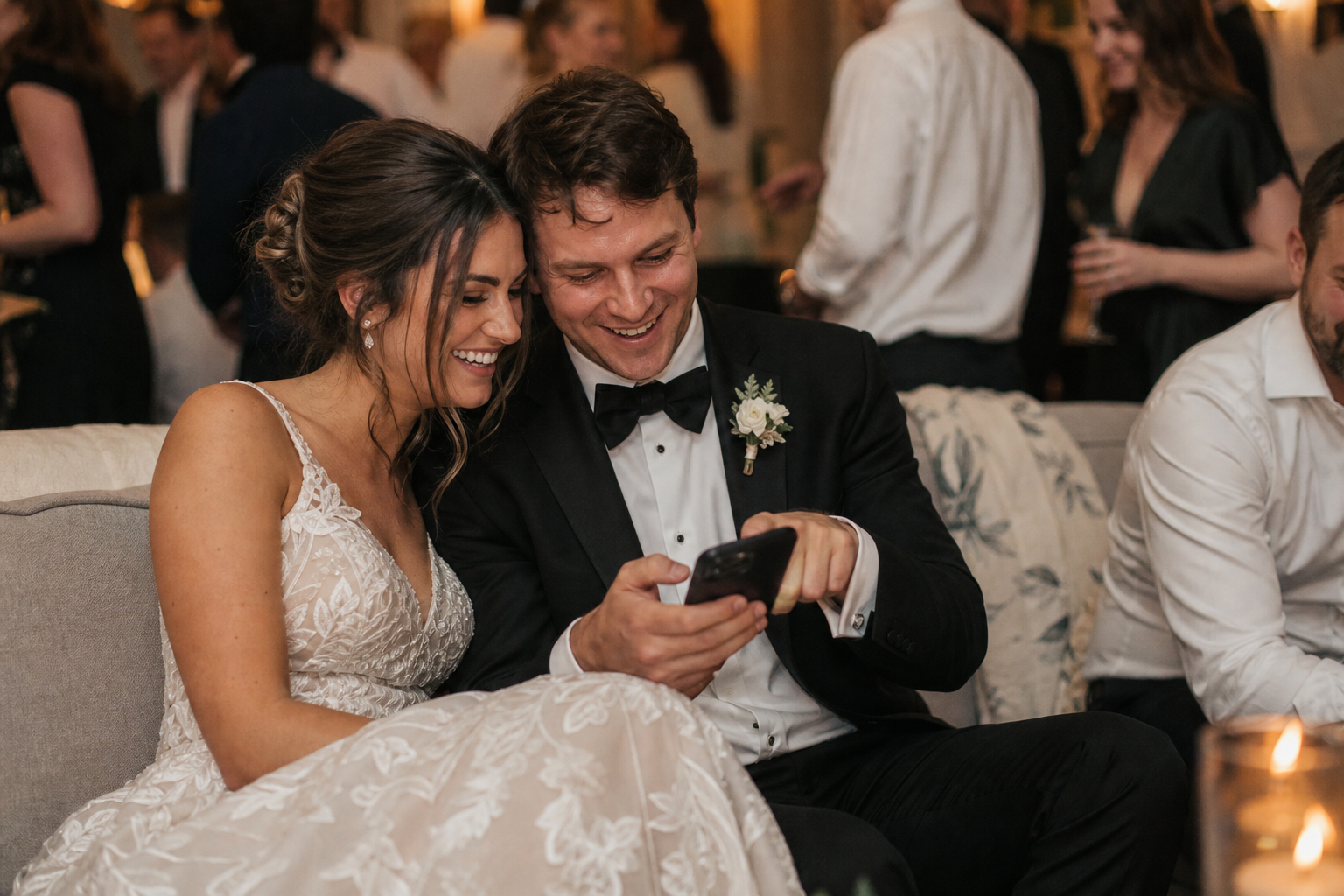
Snap the Knot now makes it easier to transfer your collected wedding photos to Google Photos. After guests have added their candid shots to your private Snap the Knot gallery, you can move those photos into the Google Photos library you already use for everyday memories, albums, and sharing.
That means you can use Snap the Knot for the part that is often hardest on the wedding day: getting photos from guests in the first place. Guests scan a QR code or open a link, then upload without downloading an app or creating an account. Once you have collected those moments, the new Google Photos transfer feature gives you another practical way to keep them alongside the rest of your life’s photos.
This is especially helpful for couples who already rely on Google Photos as their long-term photo home. Rather than treating guest photos as a separate task to put off after the wedding, you can bring them into the place where you may already revisit anniversaries, make albums, and share memories with family.
Why transfer wedding photos to Google Photos?
Your wedding photographer’s images and your guests’ images serve different purposes. Professional photos capture carefully composed portraits, key events, and polished details. Guest photos often preserve the in-between moments: a friend’s view of cocktail hour, a cousin’s dance-floor video, an excited reaction during speeches, or a quick group selfie you never knew existed.
Those guest contributions deserve a dependable place in your larger photo collection. Moving wedding photos to Google Photos can make sense when you want to:
- Keep wedding memories with other personal photos and videos.
- Create a Google Photos wedding album for easy browsing later.
- Make it simpler to share selected memories with people in your life.
- Build a more complete visual record of your wedding weekend.
- Reduce the number of places you need to remember when looking for a specific photo.
The important distinction is that Google Photos is not the guest-upload experience. Snap the Knot is designed to help you collect the photos first. Your guests do not need to navigate a shared cloud folder, sign in, or install anything just to contribute. They upload to your private gallery, and you decide what to do with the collection afterward.
How the Google Photos transfer fits into your wedding photo plan
A simple workflow is to make Snap the Knot your guest-photo collection point and Google Photos part of your post-wedding photo organization. This keeps the instructions on the wedding day easy while still giving you flexibility after the celebration.
- Create your Snap the Knot gallery. Set up a private gallery before the wedding, then share its QR code or upload link with guests. You can learn more about the setup in our guide to wedding photo QR codes.
- Invite guests to add their photos. Display the QR code where guests will naturally see it, such as near the welcome table, bar, seating display, or reception tables. They can scan or open the link and upload without an app or account.
- Let the gallery collect the day from many perspectives. Leave room for guests to upload during the event and afterward. Not everyone will remember at the same moment, and some guests will have photos they took earlier in the day.
- Review your gallery. Spend time enjoying what came in. Your owner controls help you manage the gallery experience while your private gallery keeps the collection centered on your event.
- Use the Google Photos transfer feature. When you are ready, use the transfer option in your Snap the Knot gallery and follow the prompts to move your wedding photos to your Google Photos account.
- Organize the transferred photos in a way that works for you. For example, create an album for guest photos, add favorites to a broader wedding album, or sort images by event across your wedding weekend.
If you would rather keep a local copy as well, Snap the Knot also lets couples download their collected photos and videos. A download can be useful for couples who want an offline archive or who prefer to keep a separate personal backup. The right approach is the one that makes it easy for you to find and enjoy the images years from now.
Set up your collection before you need the transfer
The Google Photos transfer feature is most useful when your guest gallery is easy for people to use from the start. A beautifully organized storage plan cannot recover the candid photos that never got collected. Focus first on making participation feel obvious and low effort.
Give guests one clear action
Use a short instruction, such as: “Scan to share the photos and videos you take today.” Avoid giving guests multiple links or asking them to join a folder, download a specific app, and remember to upload later. A QR code and an upload link create a straightforward path.
Share the link more than once
Some guests will upload immediately; others will wait until they are home. Include your link or QR code in more than one place. Consider your welcome sign, a reception table card, a post-wedding thank-you message, or a follow-up note in a group chat. The goal is not to pressure guests. It is to make the upload path available when they are ready.
Include the wedding weekend, not just the reception
A wedding is often more than one day. If you are having a shower, rehearsal dinner, bachelor or bachelorette party, or farewell brunch, optional separate event galleries can help keep each gathering distinct. Later, you can transfer the photos you want to Google Photos and organize them as a full wedding-weekend story.
For example, you might create separate albums in Google Photos for the rehearsal dinner, wedding day guest photos, and brunch. Or you may prefer one album that combines favorite candid images from every event. The structure is up to you; Snap the Knot gives you a simpler starting point for collecting the images.
Ideas for organizing your Google Photos wedding album
Once you transfer wedding photos to Google Photos, a small amount of organization can make a large collection feel more meaningful. You do not need to spend an entire weekend curating every image. Start with a system that matches how you actually plan to revisit the memories.
- Create one main album: Name it clearly, such as “Jordan & Sam Wedding — Guest Photos.”
- Separate professional and guest perspectives: If you receive photographer images separately, use a distinct album or add only your favorite professional images to a combined highlights album.
- Make a highlights collection: Pick a manageable set of photos that captures the laughter, family, décor, ceremony, and dancing.
- Sort by event if you had multiple gatherings: Separate albums can make it easier to find shower, rehearsal, wedding-day, and brunch memories later.
- Keep the unexpected shots: A slightly blurry photo can still be a priceless record of who was there and how the moment felt.
Before transferring, it can also help to decide whether you want every submitted image in your Google Photos library or whether you first want to review the gallery and move a more curated selection. There is no universal answer. Some couples love an unfiltered archive because it feels complete. Others prefer to start with favorites and preserve the broader collection in their Snap the Knot gallery or downloaded files.
What couples should know about privacy and access
Your Snap the Knot wedding gallery is private, and the gallery owner has controls over the collection. When you transfer photos to Google Photos, be intentional about how you manage access there, too. Think about who should be able to see the full album, whether you want to share only selected favorites, and whether there are images you would prefer to keep personal.
It is also wise to remember that your Google account and Google Photos use are governed by Google’s own account, privacy, and storage settings. Review those settings in your own account if you have questions about how your library is managed. The transfer feature is about giving you a convenient route to your chosen photo library; your sharing choices remain yours.
A better division of labor for wedding photos
There is a reason many couples end up with guest photos scattered across texts, social posts, and individual camera rolls: asking people to contribute can be surprisingly difficult. Snap the Knot is built to make that request easier with QR uploads, shared galleries, and a no-app, no-account path for guests. You can even use a Live Image Wall to bring guest photos into the energy of the celebration.
The new Google Photos transfer feature extends that workflow beyond the event. Collect candid wedding memories in one private gallery, then move them into the photo ecosystem you use long after the last song. It is a practical bridge between easy guest participation and a photo library that feels at home in your everyday life.
If you are planning how to collect and keep wedding memories, you can start a free gallery to see how Snap the Knot fits your celebration, then explore plans and pricing when you are ready.